Setting up your environment for Linux
This is written for Windows users.
Hey Windows users, use WSL2 which stands for Windows Subsystem for Linux v2.
For Mac and Linux Users it is pretty much no brainer, because the OS itself will support Linux features. We use Linux primarily to familiarize ourselves with the work environment. In production, we use Linux. It is helpful, I push for it.
Start Here
This is how you need to set up WSL(2) in Windows. Believe me, it is very easy. Very!
Basic Setup
Open Command Prompt or PowerShell in Windows in Administrator mode.
Type: wsl --install and enter.
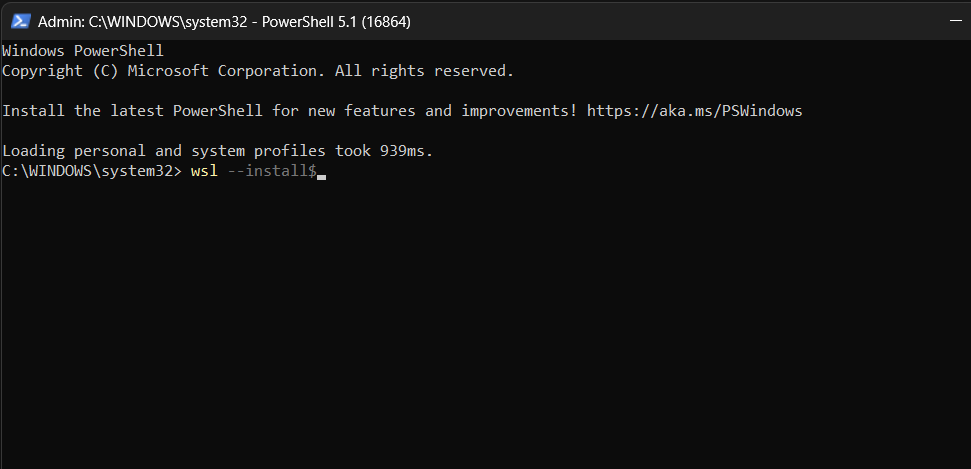
For those who are afraid of the Powershell (I know cuz I am!), you can download it from Microsoft Store!
Restart your computer.
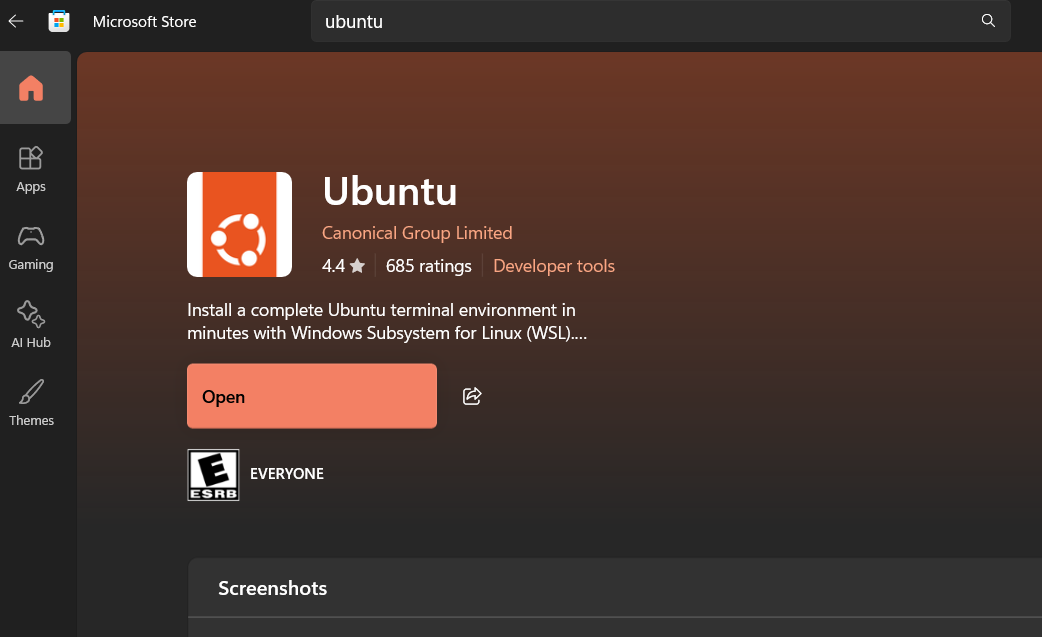
Note: This will set up WSL in your system and installs Ubuntu OS by default.
Configuring the Linux OS
After installing, search the name of the Linux distribution (Ubuntu in this Demo) and open it. You have to enter username and password.
Caution: Don't forget your username and password. You will be passively locked out of Linux.
Caution: While typing the password, you won't be able to see anything displayed. It is just a security feature. Don't panic.
Refer: Set up a WSL development environment
- username and password (,the Linux account) is unrelated to your windows profile
- The combination of username and password signs in to your default Linux Account, which is signed in automatically on launch.
- This Linux account is like Administrator, you have to sudo run (Super User Do[sudo]) and type your account password to execute in admin mode. Hence, if you forget your password, you won't be able to sudo run (passively locked out). And you would have to reset your account password.
- You can add multiple user accounts within the same Linux Distribution or you can add multiple Linux distributions which will be like separate user accounts.
Troubleshooting Windows Subsystem for Linux
Update and Upgrade
Always update your Linux OS.
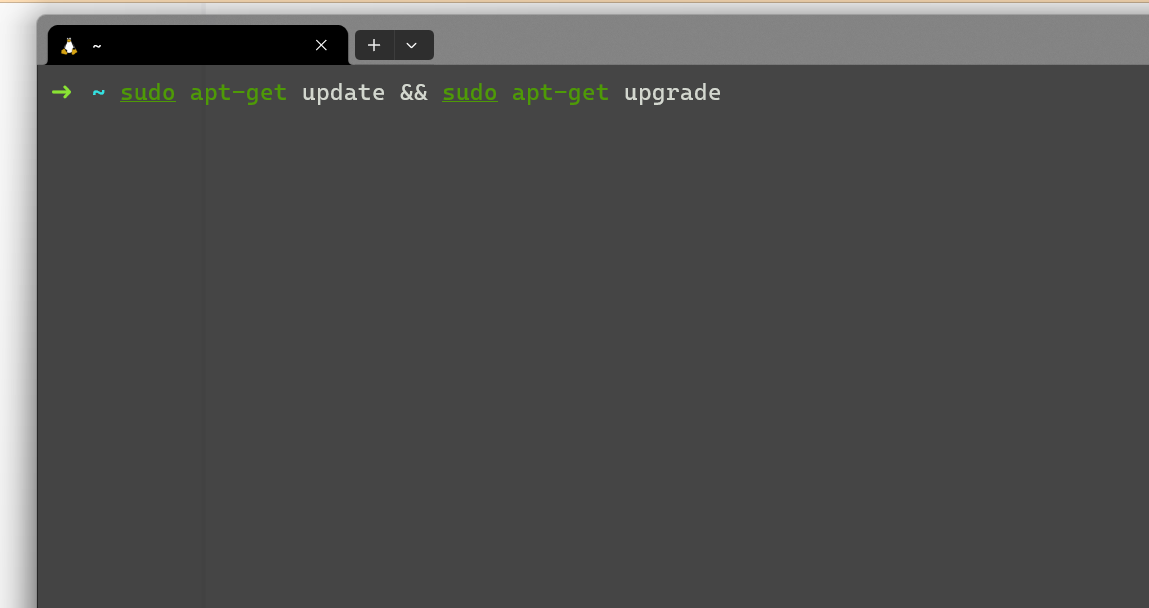
This command will update your Ubuntu or Debian based Linux Distribution.
This is the sudo run, it will prompt you for your account password.
sudo apt update && sudo apt upgrade
Restarting WSL
If the WSL stops working for some reason, try restarting it with these two commands from PowerShell/Command Prompt:
wsl.exe --shutdown
wsl.exe
To be honest, you are done. Linux is in your Windows, and that too without dual booting or using 3rd party tool. Bye.
But wait, if you are interested in personalizing or being a super user: follow along! The following section is optional.
Preferences and Shortcuts
The Basic Setup is quite boring to look at it. The tools I show next will make your experience with WSL far better.
Windows Terminal
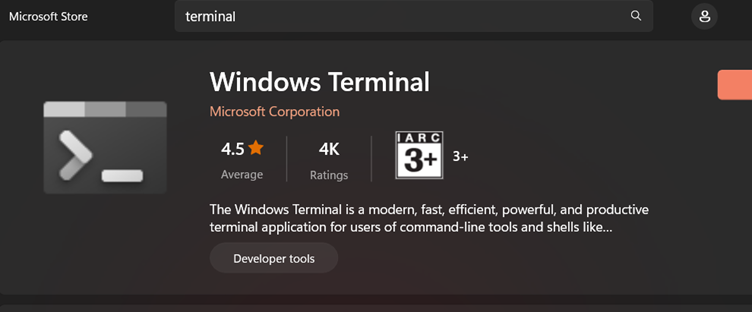
Windows Terminal gives a rich experience. Else you would need to launch the WSL Ubuntu from the start menu or through PowerShell/Command Prompt which is little problematic.
Windows Terminal offers features like tabs, split views, themes, transparency, and key bindings.
Install it from Microsoft Store directly, it is released officially for free.
By default, Windows Terminal boots up PowerShell on launch. Set up your Linux distro (Ubuntu) as your default profile, making it quick to launch and access.
Go to Settings Window by ctrl+, or by clicking dropdown beside + icon and navigating to settings.
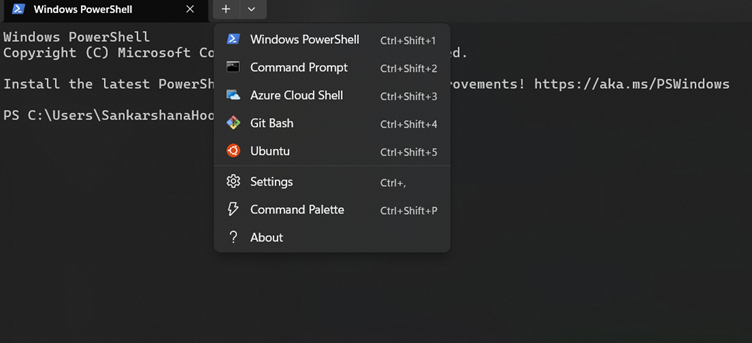
In the Startup section opened by default, select your Default profile as Ubuntu. Now, every time Windows Terminal launches, it will directly run Ubuntu.
You can even set Windows Terminal as your default terminal application as shown below:
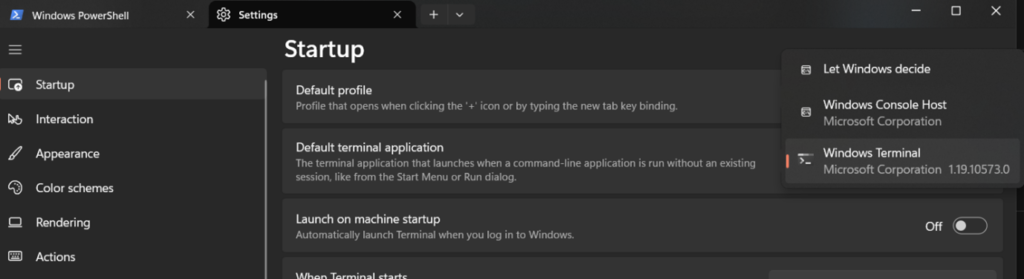
Shortcuts and Mapping the Drive
This section will make it easy to access the files and folders of your Linux Subsystem. This is solely to increase experience and productivity.
-
Open the
\\wsl$\location from file explorer: -
Right-click on the Ubuntu folder, and select
Map network drive: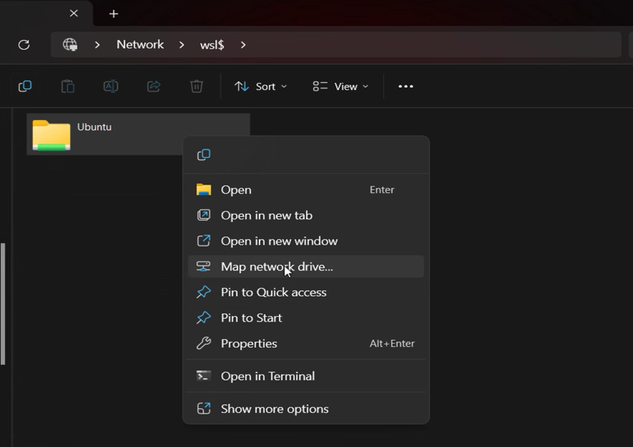
-
Select the drive letter you would like to use, leave
Reconnect at sign-inchecked andConnect using different credentialsunchecked, and then click finish (mine will look slightly different because it's already been done): -
The end result should look something like this:
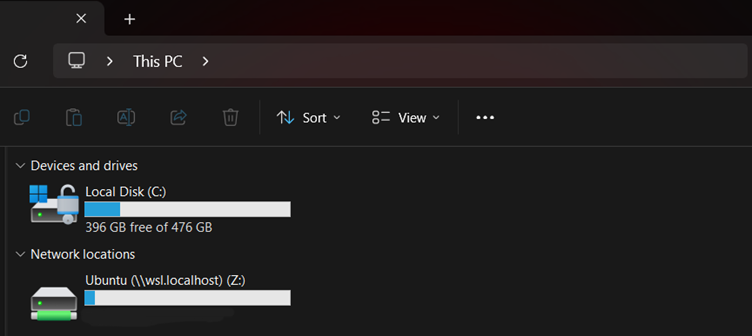
If you wanted to access your Windows files from the Linux terminal, they are found in the /mnt/ directory, so your Windows user directory would be located at /mnt/c/Users/username
With your Ubuntu drive mapped, you can easily drag/drop or copy/paste Windows files to the Linux file system by using the file explorer.